May 27, 2026
How tasks and checklists work in ProductionPlanner.io
Shared task lists with subtasks, per-task completion permissions, drag-and-drop reordering, and live progress. A closer look at the tasks feature.
By John Barker
Productions live and die by their checklists. The load-in list. The pre-show list. The strike list. The “things the producer wants done before doors” list. They are usually scattered across notes apps, group chats, and clipboards on stage, and nobody is ever quite sure whose version is current.
Tasks in ProductionPlanner.io give your team one shared checklist per project that updates in real time, breaks down into subtasks, and controls who is allowed to sign off on which items.
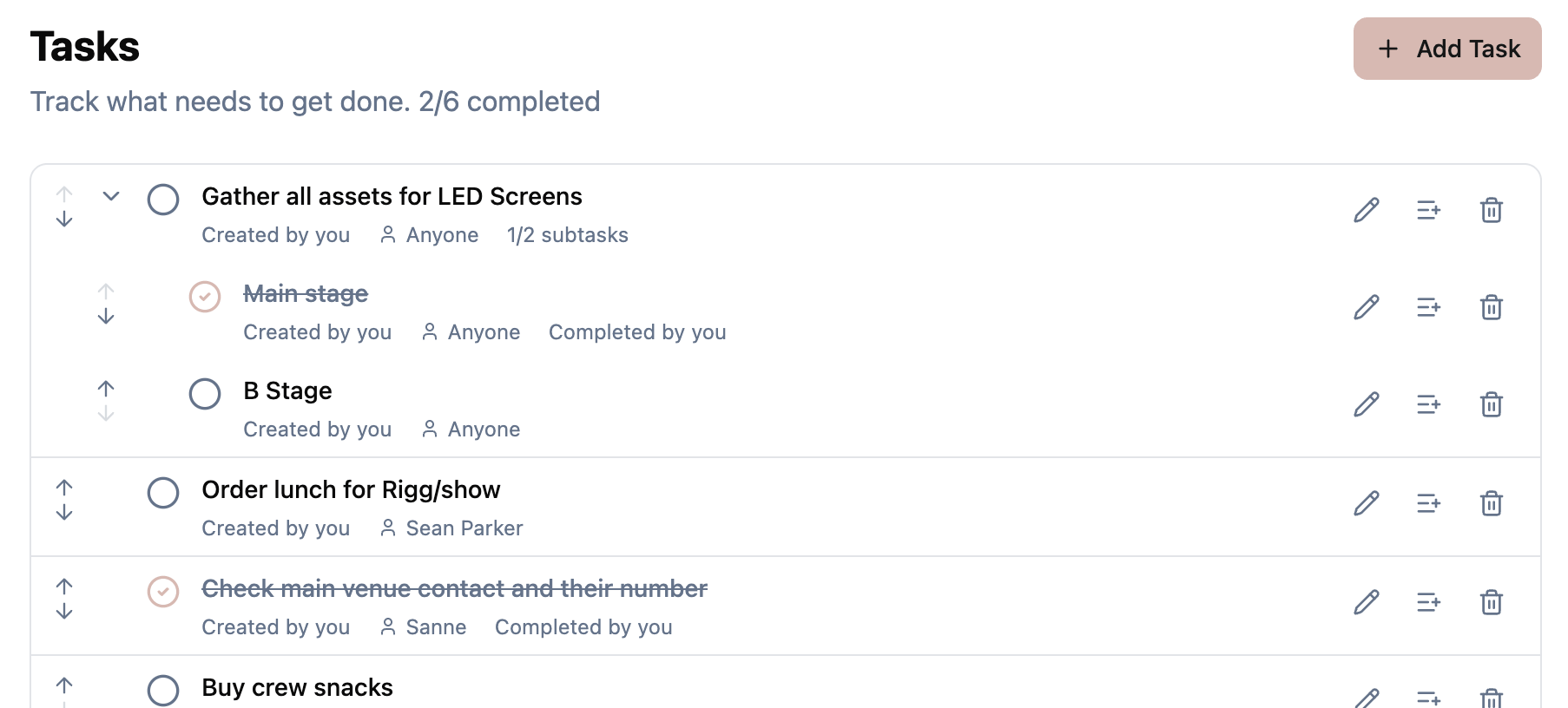
One checklist, everyone on the same page
Every project has a Tasks page in the sidebar. Anyone with write access can add a task. Anyone on the project can see it. The list is shared in real time, so when the stage manager checks off “mics on stage” from the wings, the production manager sees it tick over in the office.
Each task has a short label describing what needs to be done. That is the only required field. You can add a task in a couple of seconds, which matters when you are running a checklist that grows as the day goes on.
Subtasks for the things that are really one thing
Some items are one box. “Confirm catering count” is a single tick. Other items are several boxes pretending to be one. “Stage setup” is really “position monitors, run cable, mic check, soundcheck, lock the truck.”
Any task can have subtasks. Each subtask has its own label, its own assignees, and its own completion state. The parent task shows a counter like “3 of 7 complete” so you can scan the list and see how far along each block is without expanding everything.
This keeps the top-level list short and scannable while letting the people doing the work see the granular steps.
Who can sign it off
A checklist item that anyone can close is fine for “tape down the cable runs.” A checklist item that says “safety check complete” should only be closed by the person responsible for safety.
Every task has a “can be completed by” setting:
- Anyone: any team member on the project can mark it done.
- Specific members: only the selected people can close it.
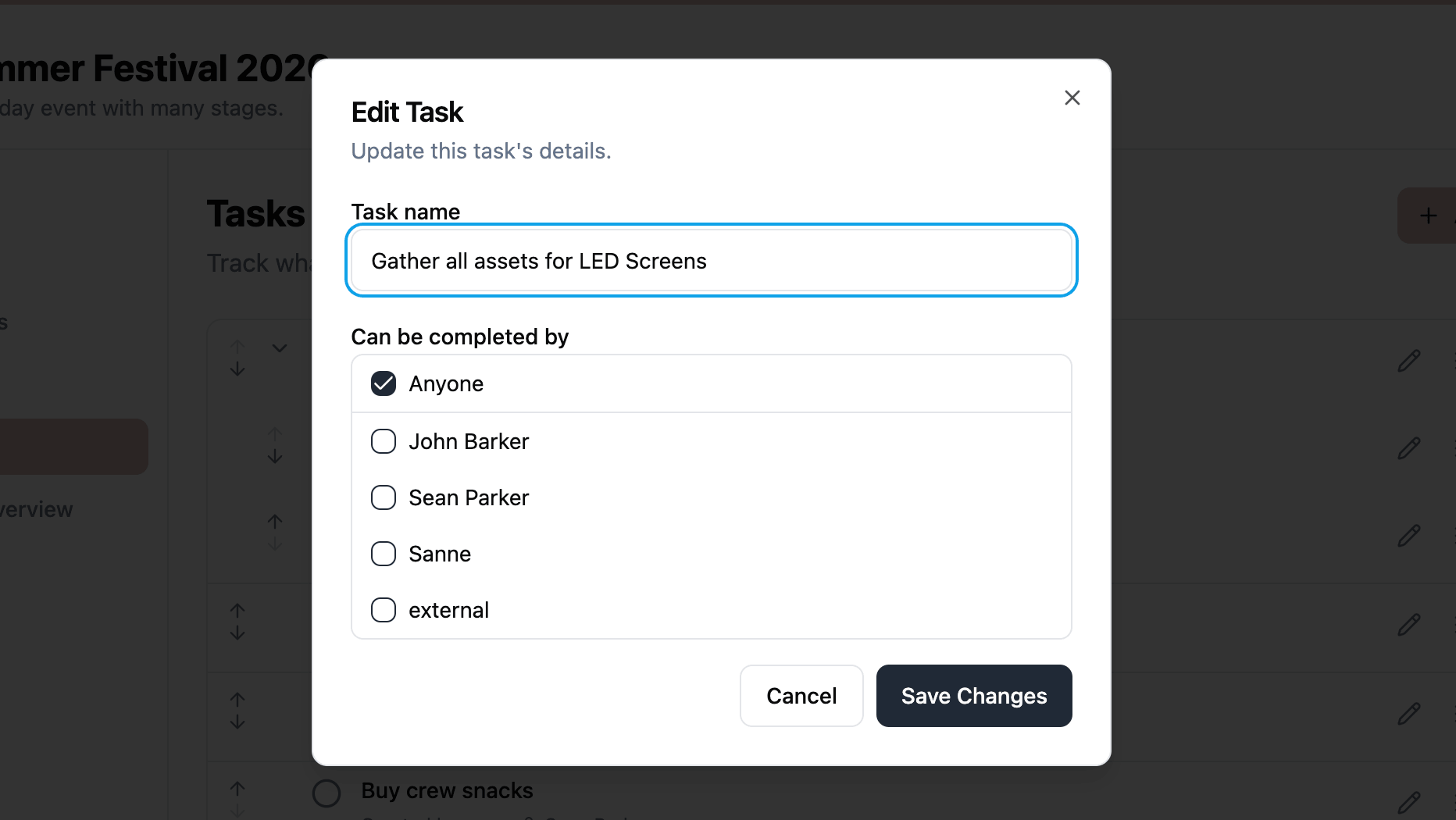
This is the bit that turns a checklist from a memory aid into a real chain of accountability. Pre-show safety walk, vendor sign-off, talent confirmation, final budget approval: any task that needs a specific person’s eyes on it can be locked to that person, while everything else stays open to whoever finishes the work first.
There is a useful side effect here too: a team member with read-only project access can still close tasks they are listed as an authorized completer on. That lets you bring in a vendor or a client to sign off on their specific items without granting them full edit access to the rest of the project.
Drag to reorder
The order tasks appear in matters. A pre-show checklist that runs top to bottom in the order you want things done is a tool you can actually follow. A pre-show checklist that comes out in random insertion order is a thing you have to constantly re-read.
Tasks (and subtasks) can be reordered by drag and drop. Grab any item and drop it where it belongs in the flow. The order is saved instantly and visible to everyone on the project.
Filter to what matters right now
A busy production can have dozens of tasks open at once. When you are in the middle of a day you usually only care about two views: “what is left to do” and “what is left for me.”
The Tasks page has a couple of view toggles:
- Hide completed tasks to focus on what is still open.
- Hide tasks not assigned to me to focus on just your own work.
Toggle either on or off depending on whether you are running point or running your own list.
Every change goes in the log
Tasks are recorded in the project’s activity log like everything else. Created, completed, reopened, deleted: each event shows the date, the team member, and a description. When you need to know who closed “lock the truck” at 2am, the log has the answer.
Try it on your next production
Tasks are part of every project on every plan. Open a project, head to the Tasks page in the sidebar, and start adding items. Break the big ones into subtasks, lock the critical ones to a specific signer, and drag them into the order your day actually runs.
If you are running a production and your checklist currently lives in three different apps, create your account and try it for your next one.
Read the full tasks documentation for a detailed walkthrough.
Stay in the loop
Get product updates when new features ship. No spam, unsubscribe anytime.